How to check your Codex usage, and make it last.
To check your Codex usage, open the usage dashboard at chatgpt.com/codex/settings/usage, or Settings, then Usage, in ChatGPT. It shows which limit you have used, your credits and when each limit resets. In the Codex CLI or IDE extension, type /status during a session to see your remaining limits.
By NarenLast updated
The fastest way
- On the web: open your Codex usage dashboard. It shows which limit you have used, your credit balance and when each limit resets.
- In the ChatGPT app: open Settings, then Usage.
- In the Codex CLI or the IDE extension, type this during a session:
/statusTo keep both limits on screen in the CLI, type /statusline and turn on the rate limit items, or add this to ~/.codex/config.toml:
[tui]
status_line = ["model-with-reasoning", "five-hour-limit", "weekly-limit", "context-remaining"]
Every way to check your Codex usage
Codex runs on the web, in the ChatGPT desktop app, on iOS (Plus and up), in the terminal and in your editor, and they all draw on one allowance. Pick the place you already are.
| Where | How | What you see |
|---|---|---|
| Web | chatgpt.com/codex/settings/usage | Which allowance is used up, your credit balance, and each reset time |
| ChatGPT app | Settings, then Usage | Your remaining allowance and reset times. In the desktop app, this is also where you use a saved reset |
| Phone | The usage dashboard in your browser | The same page as on the web |
| Codex CLI | /status | Your remaining limits during the session, with your model and context |
| Codex CLI | /usage | Your token activity by day, week or all time, and any earned reset to redeem |
| Codex CLI status line | /statusline | Your five-hour and weekly limits, always on screen |
| IDE extension (VS Code, Cursor, Windsurf) | /status | The chat ID, context usage and rate limits |
In the Codex CLI: /status and /usage
New to the CLI? Our Codex CLI guide has the install, the sign-in and the first commands.
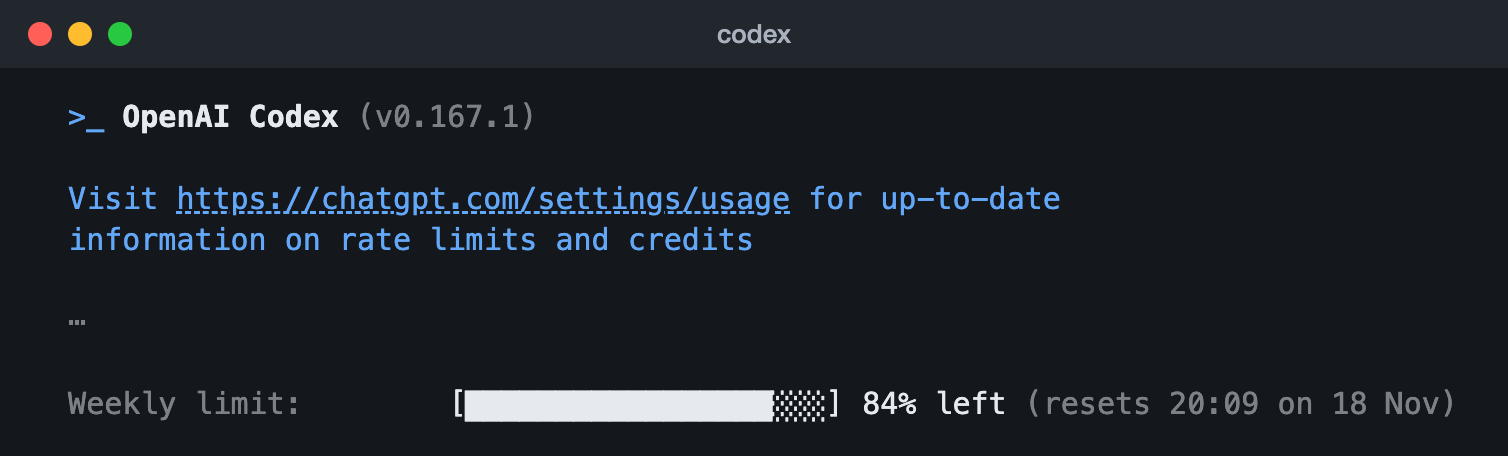
/status in the Codex CLI 0.167.1 (13 Nov 2026): the weekly limit, what is left and when it resets. The lines with the account, workspace and session are left out (the ⋯).OpenAI’s pricing page points to /status for your remaining limits during a CLI session. It also shows the session itself: your model, approval policy and how much context is left. For history, /usage opens a menu, or go straight to a view:
/usage daily
/usage weekly
/usage cumulative
The same /usage menu is where you redeem an earned reset, if you have one.
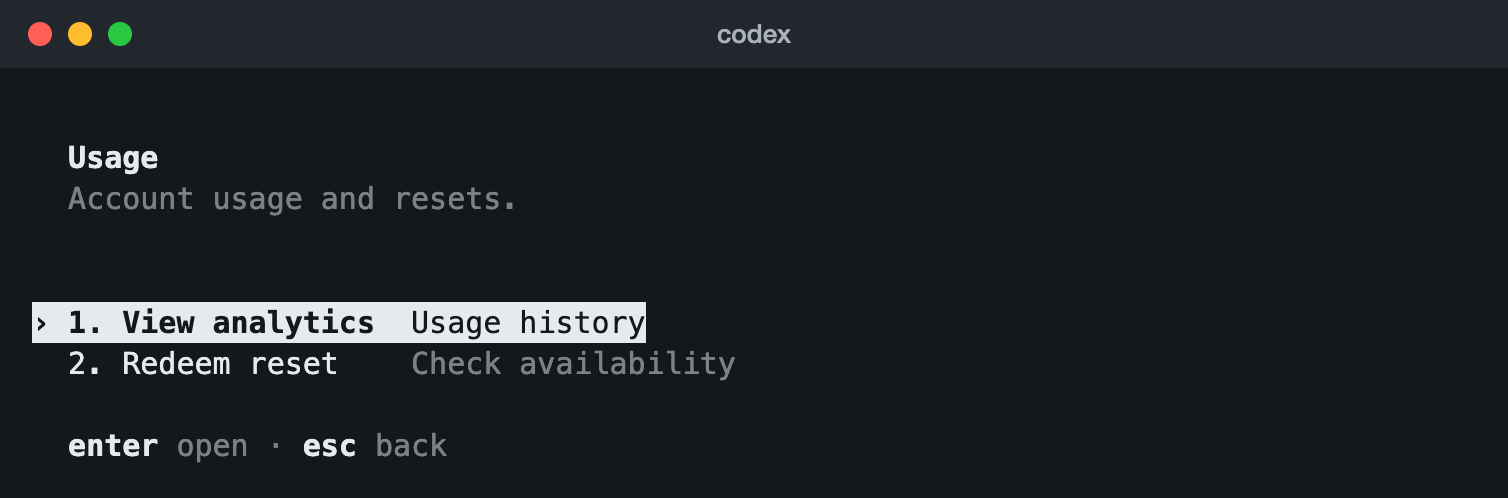
/usage in the Codex CLI 0.167.1 (13 Nov 2026) opens this menu: View analytics for your history, Redeem reset to check for an earned reset.Keep your limits on screen: the status line
The status line is the footer of the Codex CLI. Type /statusline, pick the items you want, including the five-hour and weekly limits, and Codex saves your choice in config.toml. The config in the box above does the same by hand: five-hour-limit and weekly-limit show what is left of each, and stay hidden when Codex has no number for them.

Sources, read 15 November 2026: Codex pricing, Using Codex with your ChatGPT plan, Slash commands in Codex CLI, Codex IDE extension slash commands, Configuration reference, Codex status line items (source).
Free community tools
These free, open-source tools are made by Codex users, not by OpenAI. They read Codex’s files on your computer or reuse its sign-in, so look at each project before you install it.
| Tool | Runs on | What it shows |
|---|---|---|
| ccusage | Any computer with Node.js | Codex token use and cost by day, week, month or session, from your local logs |
| CodexBar | macOS 14+, Linux | Codex, Claude and other providers’ limits with reset countdowns, in the menu bar |
| Claude Code Usage Monitor for Windows | Windows 10 and 11 | Usage and reset times in the taskbar, for Codex, Claude Code and more |
npx ccusage@latest codex dailybrew install --cask codexbarwinget install CodeZeno.ClaudeCodeUsageMonitorSources, read 15 November 2026: ccusage README, CodexBar README, Claude Code Usage Monitor for Windows README.
How Codex usage limits work
Codex comes with every ChatGPT plan, including Free and Go. Depending on your plan, you have a limit over five hours and a limit over a week, and you need room in both to keep going. ChatGPT Work and Codex already share one allowance.
- A five-hour window starts when you send your first message after the previous window ended. You can use it up before the five hours are over, even with plenty of the week left.
- The weekly limit controls how much you can use over the week.
- Pro plans ($100, $200 and $500) have no five-hour limit for now.
- There is no fixed number of messages. The model, the size of the task and its context, the reasoning level, tools, and whether it runs locally or in the cloud all change how much each message uses. Cloud tasks may use more than local ones.
- Fast mode uses your included allowance 2.5 times as fast, and Ultrafast (on Pro $500) 8 times as fast. Making images uses it about 3 to 5 times as fast.
From December, one allowance for ChatGPT and Codex
OpenAI says that starting in December, Plus, Pro and Business plans will share their usage allowance across ChatGPT and Codex, measured in tokens. Instant chat will not draw from it. You will see the combined remaining usage and reset times in Settings, then Usage. OpenAI’s announcement does not give the size of the shared pool.
A worked example
Say you are on Plus. You send your first Codex message at 09:00, which opens a five-hour window. By 11:30 a long task has used it up. Codex can finish the turn it is on, but new work waits until the window ends at 14:00. Your next message after 14:00 opens a new window. Each window you use also counts toward the week, so once the weekly limit runs out, a fresh five-hour window will not help until the weekly reset.
How many messages, roughly
OpenAI’s own estimate of local messages in one five-hour window on Plus and Standard Business. These are ranges, not limits:
| Model | Local messages per five hours |
|---|---|
| GPT-6 Astra | 5 to 45 |
| GPT-6.1 Sol | 15 to 160 |
| GPT-6.1 Terra | 35 to 285 |
| GPT-6 Sol | 15 to 150 |
| GPT-6 Luna | 350 to 3,000 |
The plans side by side
| Plan | Price | Five-hour limit |
|---|---|---|
| Free | $0 a month | Not stated |
| Go | $8 a month | Not stated |
| Plus | $20 a month | Yes, see the estimates above |
| Pro | $100, $200 or $500 a month; more usage at each step | None for now |
| Business | $20 a user a month, billed yearly ($25 monthly) | Yes, Standard seats match Plus |
What each plan costs, and what Codex costs with an API key, are in our Codex pricing guide.
Choosing between Codex and Claude Code? Their plans, prices and limits are side by side in our Codex vs Claude Code guide.
Sources, read 15 November 2026: Codex pricing, Using Codex with your ChatGPT plan, Managing usage with GPT-6 Astra in Work and Codex, Understanding ChatGPT and Codex usage limits, About ChatGPT Pro tiers.
How to make your allowance last
From OpenAI’s own advice:
- Keep prompts tight. Be precise about what you want, and leave out context the task does not need.
- Give it only the files that matter, and narrow the sources or date range when you can.
- Say how long and in what format you want the answer, and keep optional extras separate.
- Keep AGENTS.md small. Codex reads it before it starts any work, in every session, so keep it to the rules you want followed every time. In a large project, nest smaller AGENTS.md files in the folders they apply to.
- Move instructions you only need for some jobs out of AGENTS.md into a skill. Until Codex picks a skill, it sees only the skill’s name and description; it reads the full instructions only when it uses it.
- Turn off MCP servers you are not using. Each one adds context to every message.
- Pick the model and reasoning level before you start. A lower reasoning level makes your allowance go further; in the CLI,
/modelsets both. In OpenAI’s estimates, GPT-6 Luna gets by far the most messages. - Leave Fast mode off unless you need the speed. Type
/fastto switch it on or off. - After a long run,
/compactsummarises the chat to free up context. For a new task, start fresh with/new. - Compact before you step away from a long chat. Codex reuses what it has read recently from a cache, and OpenAI prices cached input at a tenth of fresh input or less, but the cache only lasts a short while. After a long break, the whole conversation is read again at the full rate. So run
/compactbefore you go, or start a new chat with/newwhen you come back and bring over only what you need. - Check the usage dashboard every week or two to learn your pace.
Tools that cut token use
The habits above are free and come first. If you use Codex every day, these tools go further. Apart from TokenEconomizer, they are made by independent developers, not by OpenAI, and they change how your agent works, so read each project before you install it.
TokenEconomizer is a free plugin from Microsoft Research and UC Berkeley (Apache 2.0) that learns from the sessions you have already run in a project and cuts the waste in the ones that follow. It does three things:
- It remembers how your project works: the build step that must run first, or the test command that works here. A fact is added at the start of each session once three sessions have confirmed it, and dropped when a later session contradicts it. This part is off until you turn it on, because it makes extra model calls.
- It stops loading tools you never use. Every loaded tool’s description is sent with every request, so a tool that goes unused for a while is left out of later sessions, and one command brings it back.
- It steps in when the agent is stuck in a loop, hitting the same failure again and again. It sends the agent one short note to try another way, and if that does not work, it tells you how to stop the turn. It never stops one itself.
Its authors measured 18.4 to 30.9% lower mean cost on SWE-Bench tasks across five combinations of agent and model. It works with Claude Code, Codex, the GitHub Copilot CLI and Pi, with experimental support for a few more. It needs Python 3.10 or newer, and what it learns stays on your computer. It is tested on Codex 0.153.1 to 0.164.0. Run this in the folder where you want to keep it, and leave the folder in place:
git clone https://github.com/microsoft/TokenEconomizer.git
codex plugin marketplace add "$PWD/TokenEconomizer"
codex plugin add tokeneconomizer@tokeneconomizer
Then start codex, choose Trust and continue, and at Hooks need review choose Trust all and continue. The hooks start in your next session, so quit with /exit, start codex again, and check with $tokeneconomizer:status.
Four more, each widely used, recently updated and working with both Claude Code and Codex:
| Tool | What it does | GitHub stars, 11 Nov 2026 |
|---|---|---|
| RTK | Shrinks the output of test runs, diffs, logs and builds before the agent reads it: up to 90% less command output, which its README notes is not 90% off your bill | 86,250 |
| Caveman | Makes the agent answer in fewer words, and leaves code, commands, paths and error messages untouched | 119,131 |
| Context Mode | Runs the agent’s commands and file reads in a local sandbox, keeps the full output on your computer, and gives the agent only the part it asks for | 33,885 |
| CodeGraph | Builds a map of your code on your computer so the agent looks things up instead of reading file after file. Its benchmark: 62% fewer tokens and 44% lower cost on average, though its answers take up more of the context window in long sessions | 77,405 |
brew install rtk
rtk init -g --codex
Restart Codex after it, and rtk gain shows what it saved.
npx skills add JuliusBrussee/caveman -gType $caveman if it does not start by itself, and say “stop caveman” to go back.
codex plugin marketplace add mksglu/context-mode
codex plugin add context-mode@context-mode
npm i -g context-mode
context-mode setup --agents codexcurl -fsSL https://raw.githubusercontent.com/colbymchenry/codegraph/main/install.sh | sh
codegraph install
codegraph initCodeGraph’s README asks you to run codegraph install in a new terminal after the first line, and codegraph init inside each project. On Windows, its README has a PowerShell line in place of the first one.
Sources, read 15 November 2026: Codex pricing, Managing usage with GPT-6 Astra in Work and Codex, Slash commands in Codex CLI, Custom instructions with AGENTS.md, Customization, Build skills, Prompt caching, TokenEconomizer README, RTK README, Caveman README, Context Mode README, CodeGraph README.
What to do when you hit a limit
- Let the current turn finish. If you hit the limit mid-turn, Codex can keep working on that turn.
- Check which limit it is, on the dashboard or in Settings, then Usage, and when it resets.
- Use a saved reset if you have one: in the ChatGPT desktop app under Settings, then Usage, or with
/usagein the CLI. Eligible Plus and Pro accounts can also buy an instant reset in some countries. - On Plus or Pro, buy credits to keep working without changing plan. Our Codex credits guide has what they cost, who can buy them and when Codex spends them.
- Run extra local chats with an API key, paid at standard API rates.
- Wait for the reset, or upgrade.
Switching models does not give you allowance back: the models share one pool.
Sources, read 15 November 2026: Codex pricing, Managing usage with GPT-6 Astra in Work and Codex, Understanding ChatGPT and Codex usage limits, Slash commands in Codex CLI.
Questions people ask
How do I know when my Codex limit resets?
The usage dashboard and Settings, then Usage, show each reset time. In the CLI, /status shows your remaining limits. If you plan your week around the reset, the status line keeps both numbers in view while you work.
Codex stopped working. Is it my limit, or is Codex down?
Check your limit first: the usage dashboard or /status shows if one has run out. If you have room left and Codex still fails, look at OpenAI’s status page. Our Codex status guide shows how to read that page, how to get an alert when Codex goes down, and every row /status prints.
Why did 10% or 20% of my usage disappear at once?
Each message costs what it makes the model do, not a fixed amount. A big context, a high reasoning level, many tool calls, Fast mode or making images all use more, and OpenAI says similar-looking tasks can cost different amounts. /usage daily shows where your tokens went.
My usage went down while I was not using Codex. Why?
Check for work still running: cloud tasks carry on while your computer is asleep, and they use your allowance. If nothing was running and the numbers still look wrong, OpenAI asks you to contact Support.
How big is the shared ChatGPT and Codex allowance from December?
OpenAI’s announcement gives no number. It says usage will be measured in tokens, that it expects most people will not wait for resets more often than now, and that Settings, then Usage, will show the combined amount left.
Which plan gives the most Codex usage?
Pro 500 has the most, then Pro 200, then Pro 100, and Pro plans have no five-hour limit for now. Standard Business seats have the same five-hour estimates as Plus. OpenAI’s pricing page gives estimates, not exact numbers for each plan.
Does using GPT in Cursor count toward my Codex limits?
Not when you pick a GPT model in Cursor’s own model menu. Cursor bills that itself, from prepaid credit or a usage pool on your Cursor plan, so it doesn’t use your Codex allowance. The Codex CLI is different: run it in Cursor’s terminal and it still counts toward your ChatGPT plan. Our Cursor usage guide covers how to check the Cursor side.
How do I check my Claude usage too?
Depending on your plan, Claude has a five-hour and a weekly limit of its own. Our Claude usage guide covers every way to check it, and our Claude Code status line guide shows how to keep it on screen in Claude Code, as the status line does in Codex. If Claude Code is new to you, our Claude Code install guide sets it up on a Mac.