Codex status: is it down, and what /status shows.
To see if Codex is down, open status.openai.com and find the Codex group: Codex Web, Codex API, CLI and VS Code extension each have a line of their own. To see the status of your own session, type /status in the Codex CLI or IDE extension. In the CLI it shows your model, permissions, context and what is left of your limits.
By NarenLast updated
The short answer
- Is Codex down? Open status.openai.com and find the Codex group. It has four lines: Codex Web, Codex API, CLI and VS Code extension. A green tick beside a line means OpenAI reports no problem with it right now.
- Is it your own session? In the Codex CLI or the IDE extension, type this in the chat:
/statusIn the CLI it prints your model, folder, permissions, context window and what is left of your limits. It sums up your session and your account’s usage. It has no line that says whether OpenAI’s service is up, so for that you need the status page.
Is Codex down right now?
OpenAI reports the state of its services on one page, status.openai.com, and its Help Center sends you there to check the current status. The page is split into groups: APIs, ChatGPT, Codex, FedRAMP and Ads Platform. Codex has a group of its own with four lines, and a fifth line sits under ChatGPT.
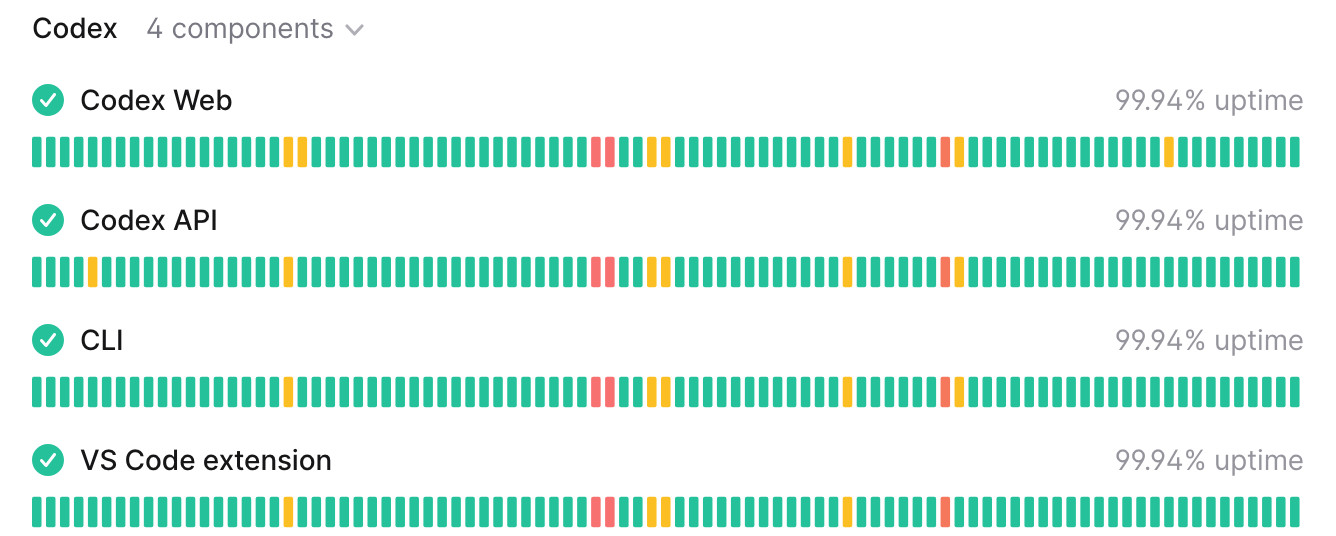
The page names each line but does not describe it. Going by the names, this is the line to look at:
| If you use Codex | Look at this line | In this group |
|---|---|---|
| In the terminal (the Codex CLI) | CLI | Codex |
| In your editor (the IDE extension) | VS Code extension | Codex |
| In the browser | Codex Web | Codex |
| In the ChatGPT desktop app | Codex in ChatGPT Desktop | ChatGPT |
The fourth line in the Codex group is Codex API. The page does not say what it covers, so if it is the only line with a problem, read the incident to see who is affected.
How to read the status page
- The icon beside a line is its state right now. Hover over a green tick and it says Operational.
- The row of bars is the recent past, one bar for each day. On 14 Nov 2026 each line had 91 bars, from 16 August to that day.
- In the page’s own code, a green bar is an operational day, yellow is degraded performance, orange is a partial outage, red is a full outage and pale grey is a day with no data.
- The percentage on the right is the uptime over the months shown. Click the group’s name row (Codex, 4 components) to open or close its lines.
- When something is wrong, a box at the top of the page names the incident, the group it affects and how far along it is. On 14 Nov 2026 that box read “We’re currently experiencing issues” for an incident that affected ChatGPT, while every Codex line stayed green. So read which group the box names before you blame Codex.
- View history, at the bottom, lists past incidents day by day, and Filter components narrows the list.
What a Codex incident looks like
A real one: on 13 October 2026 OpenAI posted Degraded performance in GPT-6.1 Sol Codex and Work mode. It listed all four Codex components and one ChatGPT component as affected. The updates moved through three stages, each with a time: Investigating, then Monitoring once a fix was applied, then Resolved about eight and a half hours after the first update. Every incident has a page like that one. Our advice: use the stage and the latest update to decide whether to try again soon or switch to other work.
A green page does not prove it works for you
OpenAI says so at the foot of the page: “Availability metrics are reported at an aggregate level across all tiers, models and error types. Individual customer availability may vary depending on their subscription tier as well as the specific model and API features in use.” A problem with one model or one plan may not turn a line yellow. If the page is green and Codex still fails, go to the checks further down.
Sources, read 14 November 2026: OpenAI Status, OpenAI Status history, Degraded performance in GPT-6.1 Sol Codex and Work mode (13 Oct 2026), How can I contact support?.
How to get an alert when Codex goes down
You do not have to keep the page open. Press Subscribe to updates, at the top right of status.openai.com, and pick one of three ways:
| Way | What you do | What you get |
|---|---|---|
| Enter your email address, then choose All components or Specific components | An email for each new incident that matches your choice, and for each update to it | |
| RSS or Atom | Copy the feed address into your feed reader | The incidents as a feed, with no sign-up |
| Slack | Open the Slack tab and press Subscribe via Slack | Incident and maintenance updates from OpenAI in that channel. Installing the app may need a workspace admin |
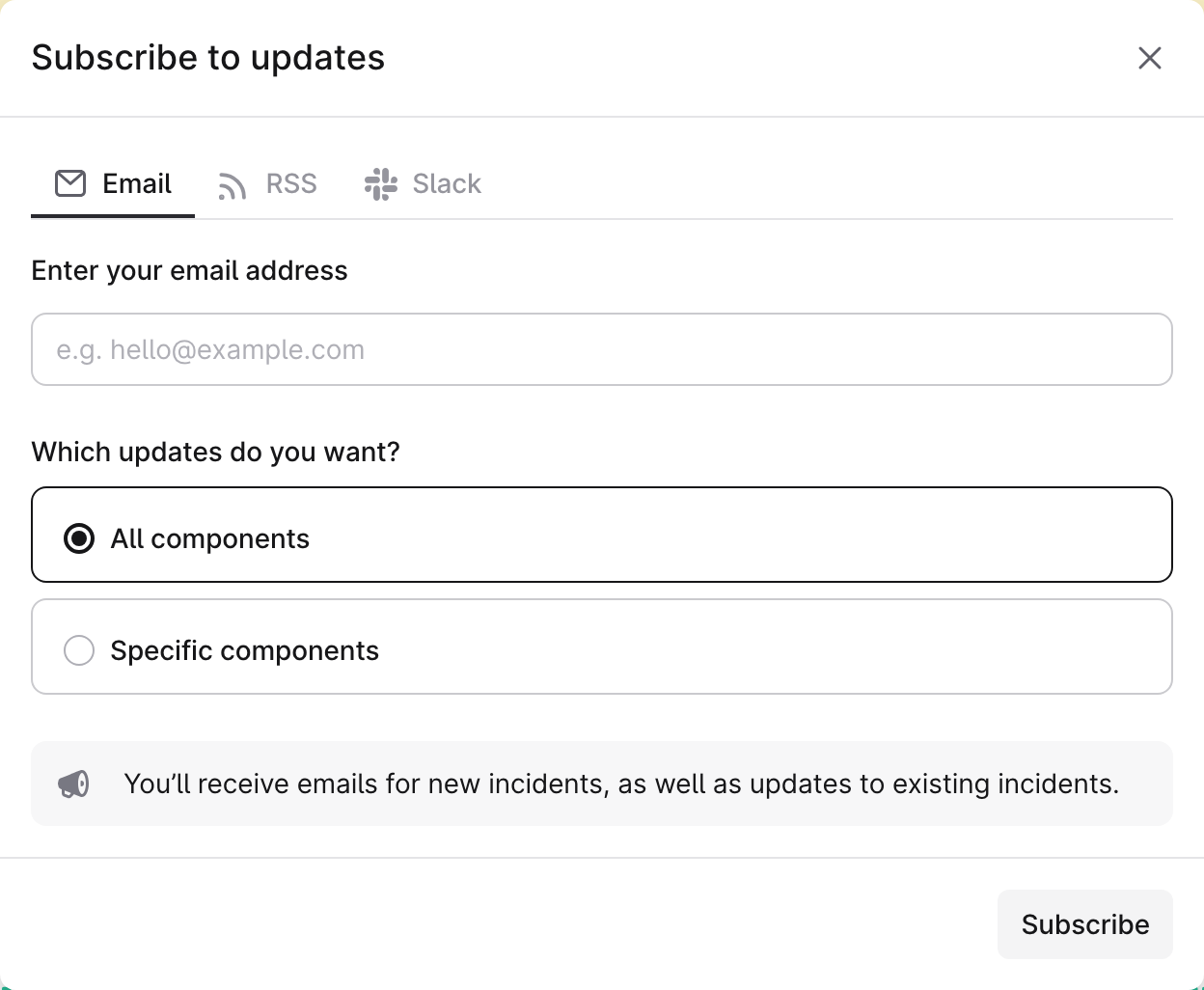
Alerts for Codex only
All components covers everything on the page, 37 components on 14 Nov 2026. If Codex is all you want to hear about, choose Specific components instead. The list opens by group: tick Codex, and under ChatGPT tick Codex in ChatGPT Desktop if you use the desktop app. The box then says you will get emails for incidents affecting the components you selected.
The feed addresses
https://status.openai.com/feed.rss
https://status.openai.com/feed.atom
The feed carries every incident, not just Codex, and each entry lists the affected components, so a filter on the word Codex in your reader does the narrowing.
Sources, read 14 November 2026: OpenAI Status.
What /status shows in the Codex CLI
The other meaning of Codex status is the /status command. OpenAI’s docs describe it as “Display session configuration and token usage”: type it in any chat and Codex prints a card about the session you are in.
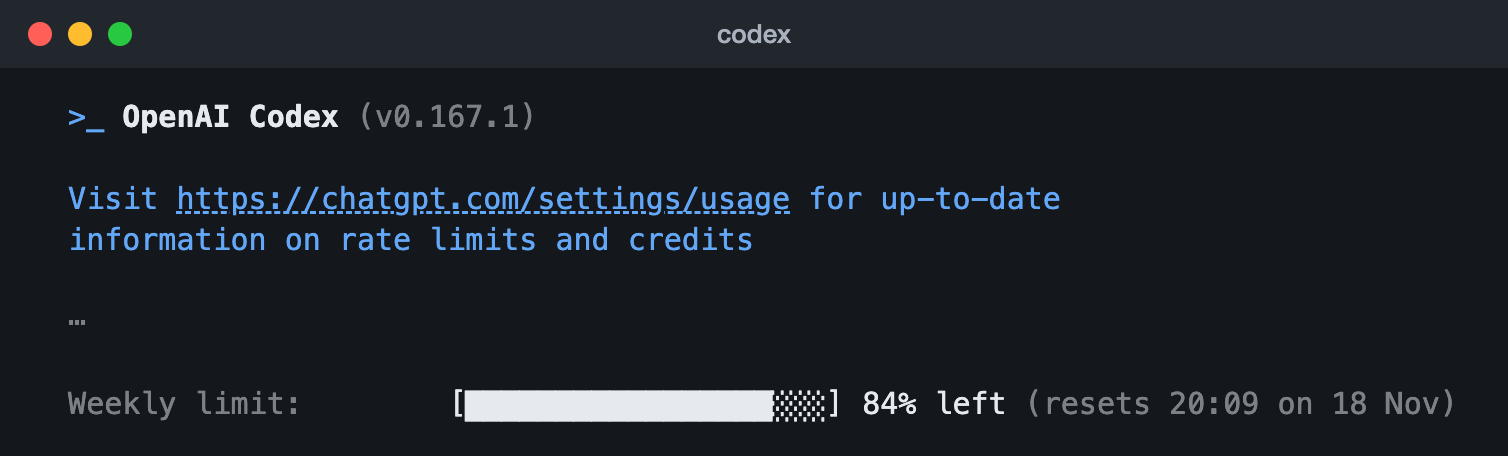
/status in the Codex CLI 0.167.1 (13 Nov 2026): the version, where to see limits and credits on the web, and the weekly limit. The rows with the folder, account, workspace and session are left out (the ⋯).These are the rows the card can print in Codex 0.167.1, in order, from Codex’s own source. A row appears only when it applies to your session.
| Row | What it tells you |
|---|---|
| Server | Only when the CLI is connected to a Codex server: “Local background server”, or a remote server’s address and version |
| Model | The model this chat is using, with its details in brackets |
| Model provider | Who serves the model, when one is set |
| Directory | The folder Codex is working in |
| Permissions | What Codex may do without asking, for example Read Only, Workspace or Full Access |
| Agents.md | The AGENTS.md instruction files in use |
| Account | The account and plan you are signed in with, or that an API key is set |
| ChatGPT workspace | Your workspace, if the account is in one |
| Thread name, Collaboration mode, Session, Forked from | The chat’s name, mode and id, and the chat it was forked from |
| Token usage | Tokens used in this chat. Hidden when you are signed in with a ChatGPT plan |
| Context window | How much of the model’s context is left |
| The limit rows | One row for each limit on your plan, such as the five-hour and weekly limits: a bar, the percent left and when it resets |
| Credits | Your credits, when Codex reports them |
Three things worth knowing. The session row holds an id and the account row an email, so crop them before you share a screenshot. After /status, the /copy command copies the whole card or a single field. And the card shows only the limits your plan has: ours, on a Pro plan, had a weekly row and no five-hour row.
When the limits row has words where the numbers should be
| The row says | What to do |
|---|---|
| data not available yet | Codex has no numbers to show yet. Try /status again later |
| refresh requested; run /status again shortly. | Codex is fetching them. Run /status again in a moment |
| limits may be stale - run /status again shortly. | The numbers shown are old and a refresh is on its way. Run /status again |
| limits may be stale - start new turn to refresh. | The numbers shown are old. Send a message to refresh them |
| not available for this account | Codex has no limits to show for this account |
The messages are word for word from Codex 0.167.1. For every other place to see your limits, how the five-hour and weekly windows work and what to do when one runs out, see our Codex usage guide. For the limits on the ChatGPT side, see the ChatGPT usage guide.
/status is a snapshot: you have to ask for it. To keep your limits on screen while you work, set up the status line, which the Codex usage guide covers. For every other command, see OpenAI’s own Codex command reference.
/status in the IDE extension
The extension for VS Code and editors built on it has the command too. Type / in the Codex box, pick /status and press Enter. OpenAI’s docs say it shows “the chat ID, context usage, and rate limits”, a shorter list than the CLI’s.
Sources, read 14 November 2026: Slash commands in Codex CLI, Codex IDE extension slash commands, Codex command line options, The /status card in Codex 0.167.1 (source), Codex pricing, Using Codex with your ChatGPT plan.
Codex is not working but the status page is green
Then the problem may be on your computer, in your account, in one model, or not on the status page yet. Work down this list. Each step rules one thing out.
- Look at the status page again, at the box on top and at View history. An incident may have been posted since you last looked.
- Check your limits. Type
/statusin the chat. A used-up limit by itself is not an outage: the Codex usage guide covers when it resets and what you can do until then. - Check you are signed in. In your terminal, run
codex login status. It shows the sign-in method in use. - Check your install. Run
codex doctor. OpenAI describes it as a local diagnostic report for a broken Codex installation. - Check your network. Run
codex doctor --network-only, which keeps to the config, the network environment, the HTTP connection to the model provider and the Responses WebSocket connection. - Update. Run
codex updateto check for a newer CLI and install it, when your installed release can update itself, then try again. - Tell OpenAI. Type
/feedbackin the chat to open the feedback prompts, where you choose whether to include logs, look for the same problem in the Codex issues on GitHub, or contact OpenAI Support. Read any logs before you share them, in case they hold something private.
codex login status
codex doctor
codex doctor --network-only
codex update
Sources, read 14 November 2026: Codex command line options, Authentication, Slash commands in Codex CLI, Troubleshooting, How can I contact support?.
Questions people ask
Where is the Codex status page?
Codex does not have a page of its own. It is a group on OpenAI’s status page, status.openai.com, with four lines: Codex Web, Codex API, CLI and VS Code extension. Codex in the ChatGPT desktop app is a line in the ChatGPT group.
Does /status tell me if Codex is down?
No. /status describes your own session and account: the model, folder, permissions, context and limits. Whether OpenAI’s service is up is on the status page.
How do I get outage alerts for Codex only?
On status.openai.com press Subscribe to updates, stay on Email, choose Specific components and tick the Codex group. You then get emails only for incidents that affect those components.
What is the difference between /status and /usage?
/status is about now: this session, and what is left of your limits. /usage is about the past: your account’s token activity by day, by week or in total. The Codex usage guide shows both.
Why does /status show no five-hour limit?
The card shows the limits your plan has. OpenAI’s pricing page says Pro plans currently have no five-hour limit, and on our Pro plan the card had a weekly row only.
The page says Operational but Codex is slow. Why?
The page reports availability in aggregate, across all plans and models, and OpenAI says your own may differ with your plan and the model you use. Past incidents show the other half: the one on 13 October 2026 was about a single model in Codex.
Is there a status command in Claude Code too?
Claude Code has a status line of its own, and Claude has its own limits. Our Claude Code status line guide and Claude usage guide cover them.