How Wishbar works, in five minutes.
Everything you need to know, from download to your first widget. If a question is not answered here, try the FAQ or write to hello@wishbar.app.
Last updated
What Wishbar is
Wishbar is a Mac app that lives in your menu bar, the row of small icons at the top right of the screen. You type what you want in plain English, like "a widget that shows the live gold price" or "a widget counting down to my wedding", and your own AI builds that widget for you, right there in Wishbar, while you watch. It uses your own ChatGPT or Claude account. A free ChatGPT account is enough. Claude needs a paid plan. Your AI works only while it makes or changes a widget; most widgets then run without it. The only thing you pay us for is Wishbar.
Your first five minutes
1. Install it. Download Wishbar from your Polar customer portal (Polar's email links there), open the file and drag Wishbar into Applications, like any Mac app.
2. Launch it. The first time you open Wishbar, its panel opens by itself, below the small wand icon in your menu bar, at the top right of the screen. Click that icon any time to open or close the panel. Opening Wishbar from Applications opens the same panel.
3. Enter your licence key. Wishbar asks for it first. It is in your Polar customer portal; the email Polar sent you links there, through its Access purchase button. Paste it once and you are done.
4. Connect your AI. The panel walks you through connecting ChatGPT (as Codex) or Claude with a couple of clicks. No Terminal, no configuration files. You sign in to your own account. Wishbar uses it only while your AI makes or changes a widget; most widgets then run without it, so they use no Claude or ChatGPT tokens.
The loop: wish, watch, keep
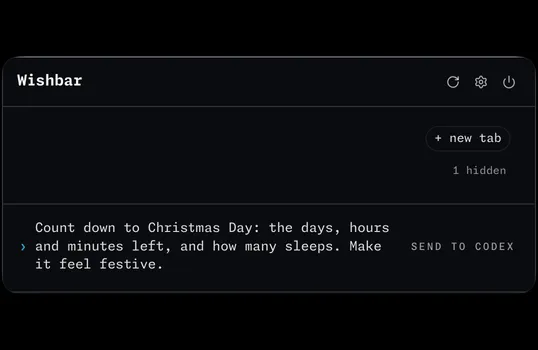
At the bottom of the panel there is a box that says "Ask for a widget". Type a wish and press send. Your AI starts building on your Mac and tells you what it is doing: with ChatGPT usually one to three minutes, with Claude about three. You can close the panel and come back; the build keeps going.
When it finishes, the new widget is already showing so you can judge it, and you get two buttons: Keep and Undo. Keep makes it permanent. Undo puts the widget's files back the way they were; it cannot take back something the build already did elsewhere, like a message it sent. Once you Keep, that change is final: to change or remove the widget later, make a new wish.
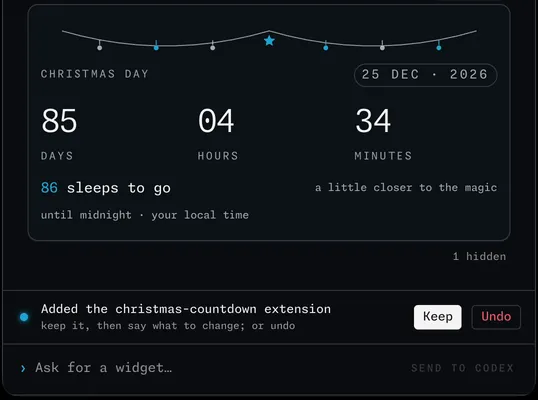
A widget is never final. Don't like the colour, the size, the refresh speed? Just ask: "make the countdown bigger", "refresh the price every minute". The AI edits the widget and you Keep or Undo again.
Going further
Tabs. The + at the right end of the tab row adds a new tab, so your money widgets can sit apart from news or countdowns. Drag widgets between tabs to arrange them.
Past wishes. When the box is empty, press the up arrow key to bring back your last wish; press it again to go further back, and the down arrow comes forward. Change it if you like and send it again. Wishbar keeps your last 50 wishes, on your Mac only.
Ready-made widgets. The gallery holds widgets Wishbar made. Open one and press Get it in Wishbar, or copy its link and paste it into the ask box. Either way Wishbar asks you first, then your AI builds it on your Mac. A recipe is a description, not a program, so nothing runs from the link itself. Sharing widgets between people is paused in this version; it comes back when it is ready.
Where things live, and what is safe
Your widgets are plain files on your own Mac, in a folder called.wishbar/extensions in your home folder. Every widget sits in its own folder that you can open and read. Your widgets themselves are never stored on our servers.
Every change the AI makes to your widgets passes through the same two buttons: you see the result, and one click puts the files back. The app is signed and notarised by Apple. Everything about privacy is in the privacy policy.
Wishbar updates itself. If it says it can't, because it was installed with administrator rights or your account can't change the Applications folder, download the new version from your purchase page and drag it over the old one as yourself. After that it updates by itself again.
Check the app is genuine
Wishbar is signed with our Apple Developer ID and notarised by Apple, so macOS checks it and opens it like any other downloaded Mac app: no security workaround, no Terminal. If you want to check for yourself, open Terminal after installing and run these two lines, one at a time. The first asks macOS whether Apple notarised the app. The second checks that the signature was made with our Apple developer account (team 644Q88LT64) and that nothing inside was changed. Each has a Copy button; the box under it shows what a genuine copy answers.
spctl --assess --type execute -v /Applications/Wishbar.app/Applications/Wishbar.app: accepted
source=Notarized Developer IDThe words that matter: accepted, and source=Notarized Developer ID.
codesign --verify --deep --strict -R='anchor apple generic and certificate leaf[subject.OU] = "644Q88LT64"' /Applications/Wishbar.app && echo genuinegenuineThe words that matter: genuine, and nothing else.
If either answer is different, do not open the app. Write to hello@wishbar.app.