Retirement countdown widget for your Mac
Count down the days to your retirement, right from your Mac menu bar. Wishbar turns plain English into widgets like this in minutes, using your own AI.
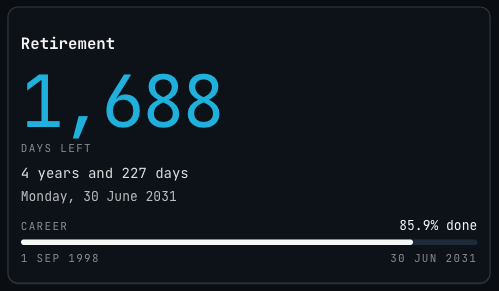
Retirement countdown · A retirement countdown for your Mac menu bar: the days left to the day you choose as one big number, and how much of your working life is done.
Made with  Wishbar
Have Wishbar on this Mac? This opens it with this widget ready to make. Wishbar asks first, then your AI makes it in a few minutes.
The wish that made it, as typed into Wishbar:
A countdown to my retirement on 30 June 2031. Show the days left as one very large number in the accent colour, the only colour on the card, under a bold Retirement title, with the years and days left and the date itself under it. Add a progress bar from my first day at work, 1 September 1998, to that day, with the percentage done.
Read all of itFold it
Keep everything else in white and grey, and keep it up to date on its own.
“A widget like this can be made for you from one sentence, to your taste. Nobody else will have it.”
Black Friday and Cyber Monday sale. Ends soon. 14-day money-back guarantee, no questions asked.
No card. Checkout asks for your email, and may ask for your address. You bring the AI: a free ChatGPT account is enough.
“Wishbar turned a one-sentence request into a working Mac widget in minutes … I've stopped hunting for menu-bar apps; I just wish for them now.”
What it does
- Shows the days left until your retirement day as one very large number, the only thing on the card in colour, under a bold Retirement title.
- Puts the same wait in years and days under it, then the date itself, weekday included.
- Draws a bar of your working life, from your first day at work to your retirement day, with the percentage done above it.
- Counts whole days on your Mac's own calendar, so a new day starts at midnight where you are, and a clock change never skips or repeats a day.
- On the day itself it says today in place of the number, and from the next day it says retired.
- Checks the date each time you open the panel and once a minute while it is open, from your Mac's clock alone, so it needs no internet.
Where the data comes from, and what it needs
Nothing outside your Mac. No account, no key. It runs on your Mac and needs no internet. Once made, it runs without your AI: it uses no Claude or ChatGPT tokens.
- Your retirement day and your first day at work, given in the wish
When it is useful
- Once the date is agreed with your employer, knowing exactly how long is left without counting on a calendar.
- Pacing what comes before the day: the money, the handover, the first long trip.
- Seeing how much of your working life is already behind you, at a glance between tasks.
How to add this widget to your Mac
- Get Wishbar, free for seven days, and install it.
- Copy this widget's recipe link:
https://wishbar.app/recipes/retirement-countdown.html - Paste it into the box at the bottom of Wishbar's panel and send it. Wishbar asks, then your AI builds it.
- Press Keep when you like what you see.
Questions people ask
How many days until I retire?
It depends on today's date and the day you give it, so the widget counts again from your Mac's calendar: for a retirement on Monday 30 June 2031 it read 1,688 days on 15 November 2026, when the picture above was taken, or 4 years and 227 days.
How do I change my retirement date?
Say it in a follow-up wish. In Wishbar's own test, "Change my retirement date to 31 March 2032." took 18 seconds, and the count, the date and the bar moved to the new day. To start from your own dates, change them in the wish above before you send it.
What does the bar show?
How much of your working life is done, from the first day at work in the wish, 1 September 1998 here, to the retirement day. On 15 November 2026 it read 85.9% done.
What happens on the day I retire?
It says today in place of the number, and from the next day it says retired. The date stays under it, and the bar is full.
Does it count working days?
No: it counts every day, weekends included, as the wish asks. Right after making it, Wishbar offered the next wish: show how many working days are left, skipping weekends and holidays.
Is it the same as the State Pension countdown?
No. This one counts to any date you choose, in any country. If you are in the UK and want the day you reach State Pension age, the UK State Pension countdown works that date out from your birthday and the GOV.UK timetable.
Can it count down to something else?
Yes, as its own wish: a last day at work, a move or a long trip. The gallery has a Christmas countdown and a Black Friday countdown made the same way, and a year progress widget that shows how much of this year is left.
Does it need the internet or an account?
No. Once made, it works from your Mac's own clock and calendar, so it needs no internet, no account and no key. Your two dates reach your AI once, in the wish, while it makes the widget; after that the widget sends nothing anywhere.
Can I put it on my Mac desktop?
Not this one. Wishbar's widgets live in its panel, which opens from the W in your menu bar, so the countdown is one click away whatever window is in front.
How long does it take to make?
Under a minute in Wishbar's own test on 15 November 2026: Claude made it from the wish above in 43 seconds, and the picture above is that first version, kept as it came.
Added Last updated

Made by Naren, who makes Wishbar and wished for every widget here. New widgets reach his list first.

More like this
See the gallery's Time section.